Prerequisites
Tip
It is advised to checkout the Run Demo tutorial before reading this section.
Before following through with this section make sure to check prerequisites and install Unity in accordance with section Unity installation.
Setup AWSIM Unity project
To setup the AWSIM project in Unity Editor:
-
Clone the AWSIM repository by executing the following command in the terminal:
git clone git@github.com:tier4/AWSIM.git -
Download
Japan_Tokyo_Nishishinjuku.unitypackageDownload Map files (unitypackage)Info
The Externals directory is added to the
.gitignorebecause the map has a large file size and should not be directly uploaded to the repository. -
Launch UnityHub.
-
Open the project in UnityHub
-
Click the
Openbutton in Unity Hub: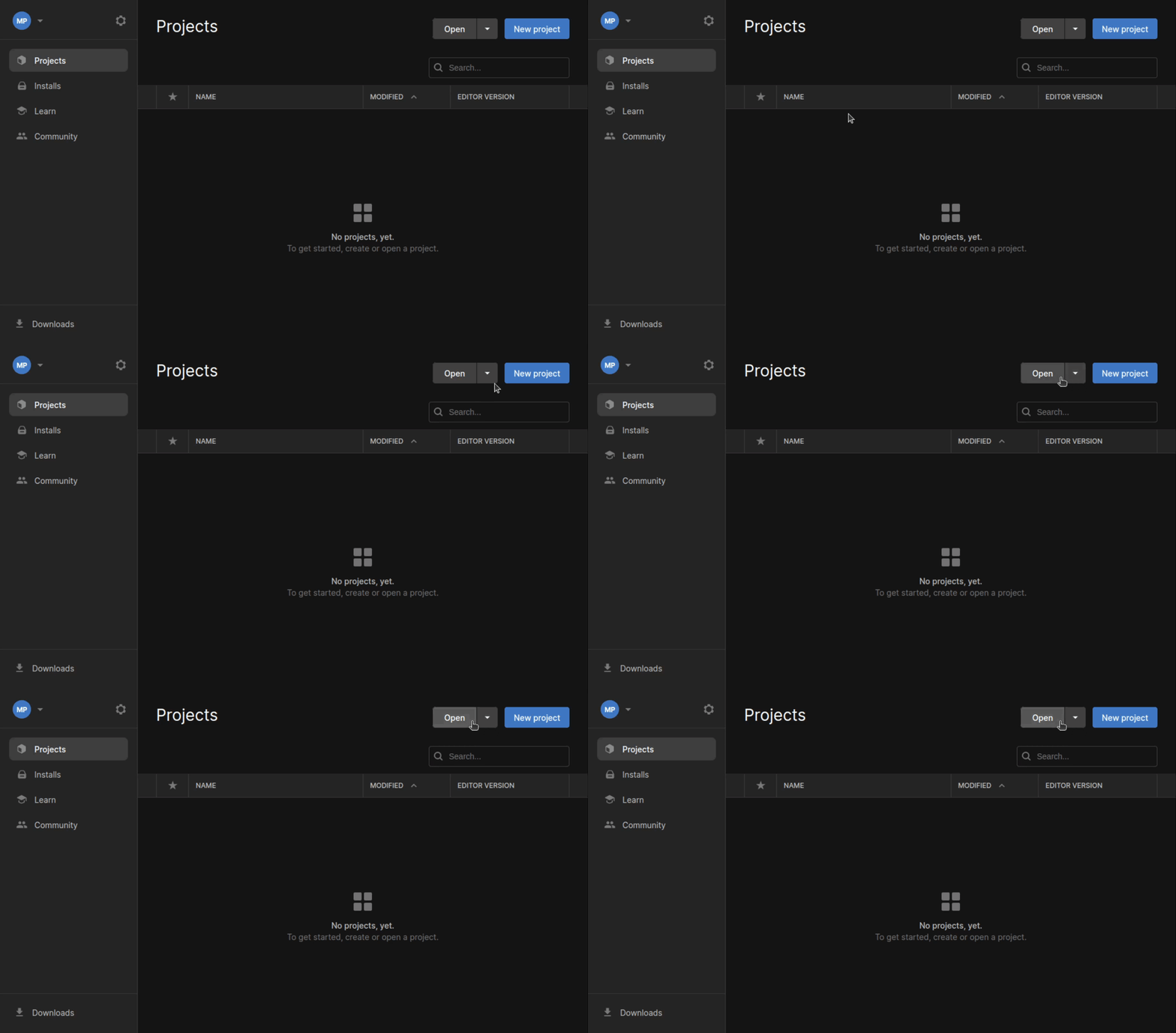
-
Navigate the directory where the AWSIM repository was cloned to, select it and click
Openin file explorer: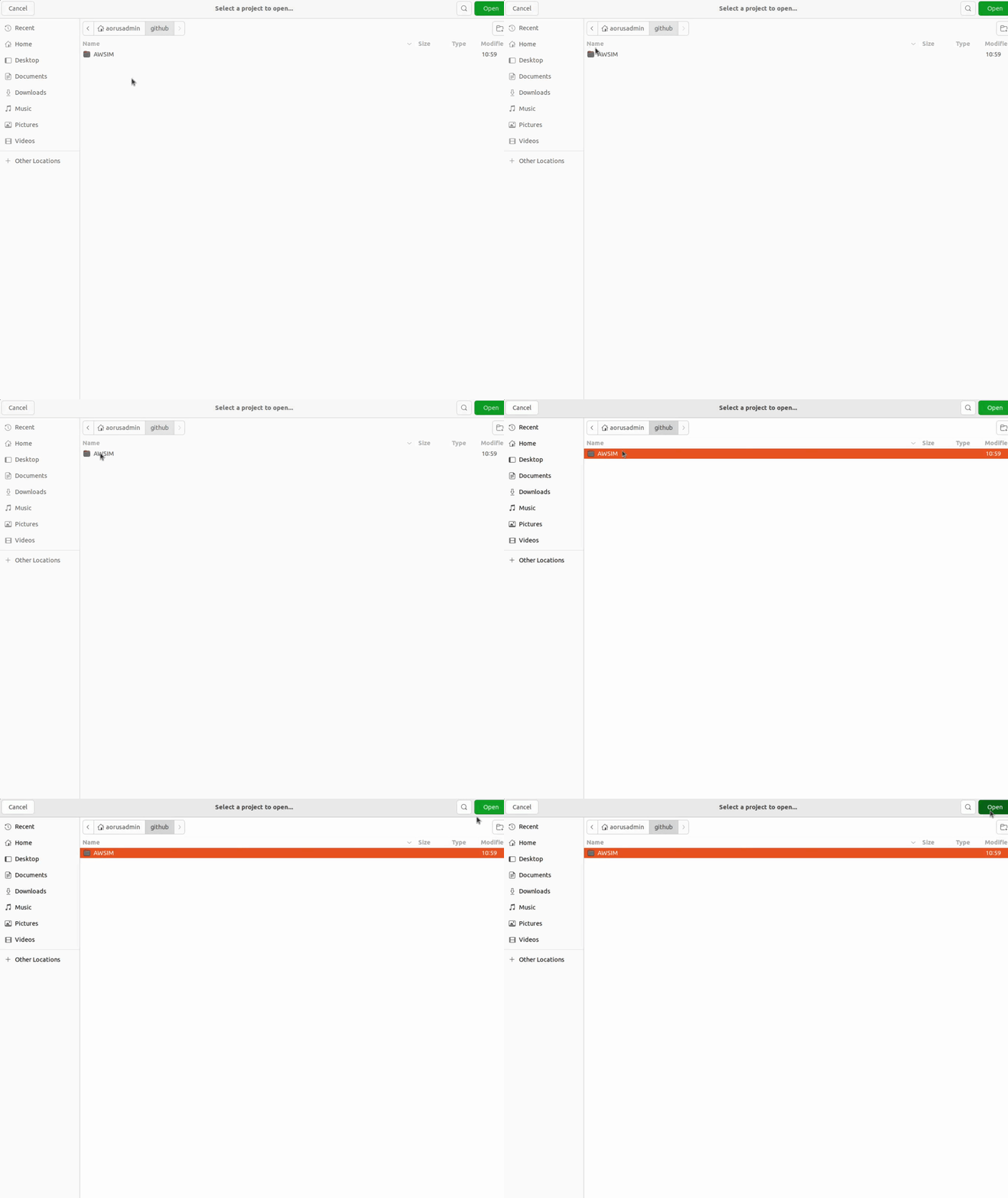
-
The project should open automatically, if it doesn't it still should be added to
Projectstab in Unity Hub. To launch the project in Unity Editor simply click theAWSIMitem: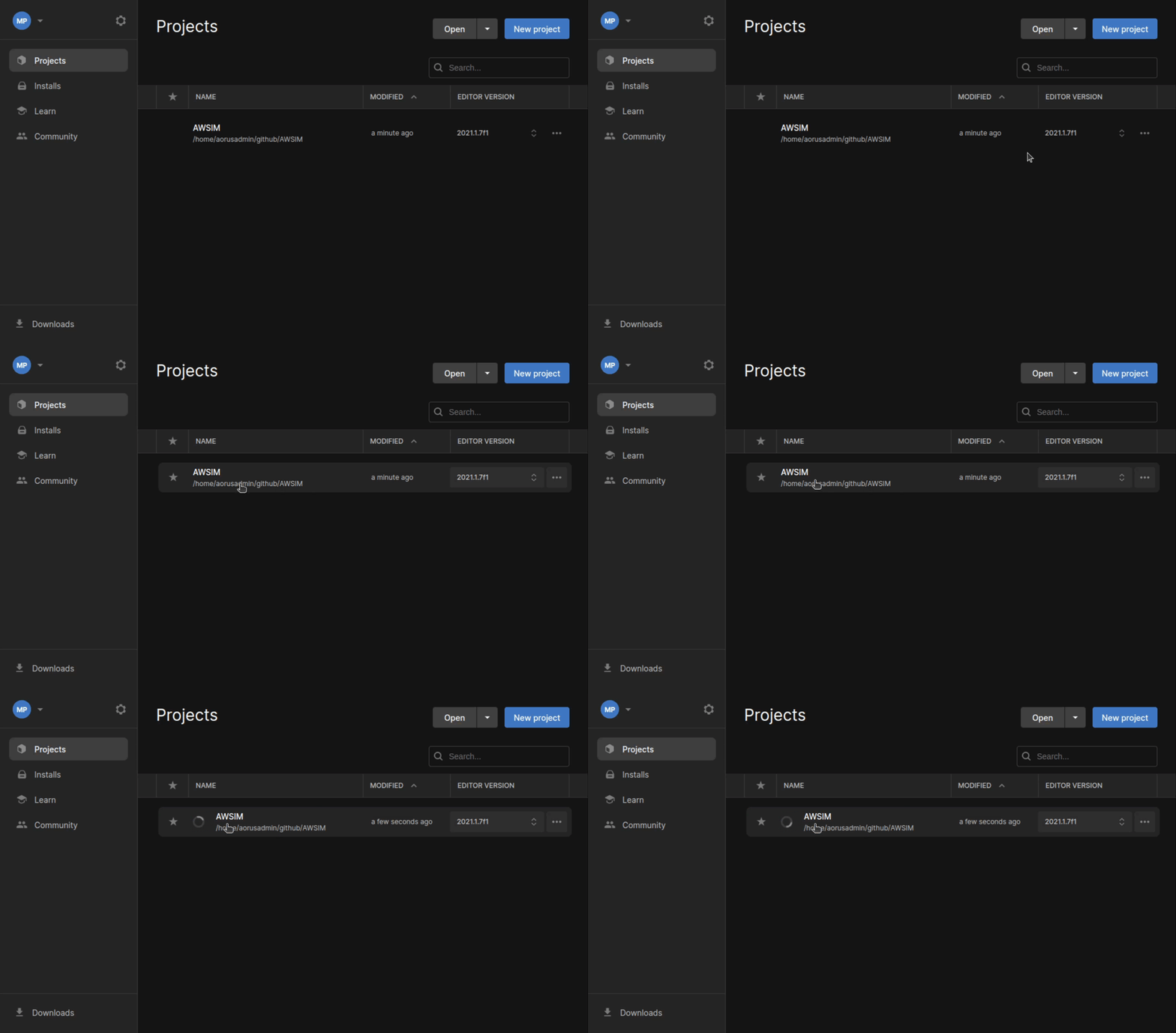
Tip
If you get the safe mode dialog when starting UnityEditor, you may need to install openssl.
- Download libssl:
$ wget http://security.ubuntu.com/ubuntu/pool/main/o/openssl1.0/libssl1.0.0_1.0.2n-1ubuntu5.11_amd64.deb - Install it:
sudo dpkg -i libssl1.0.0_1.0.2n-1ubuntu5.11_amd64.deb
-
-
In the open project, from the menu bar at the top, select
Assets -> Import Package -> Custom Package...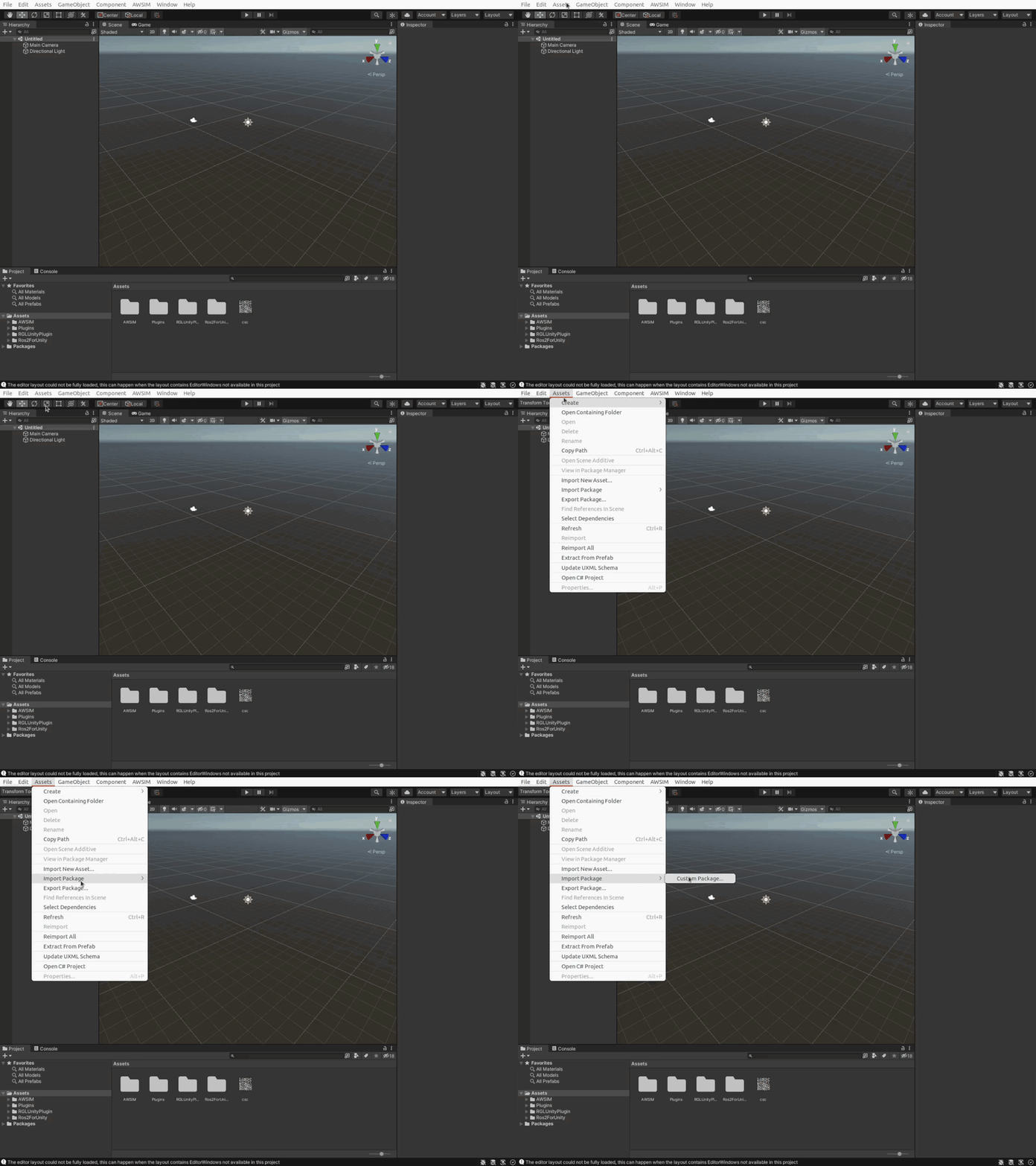
-
Navigate the to downloaded
Japan_Tokyo_Nishishinjuku.unitypackagefile and open it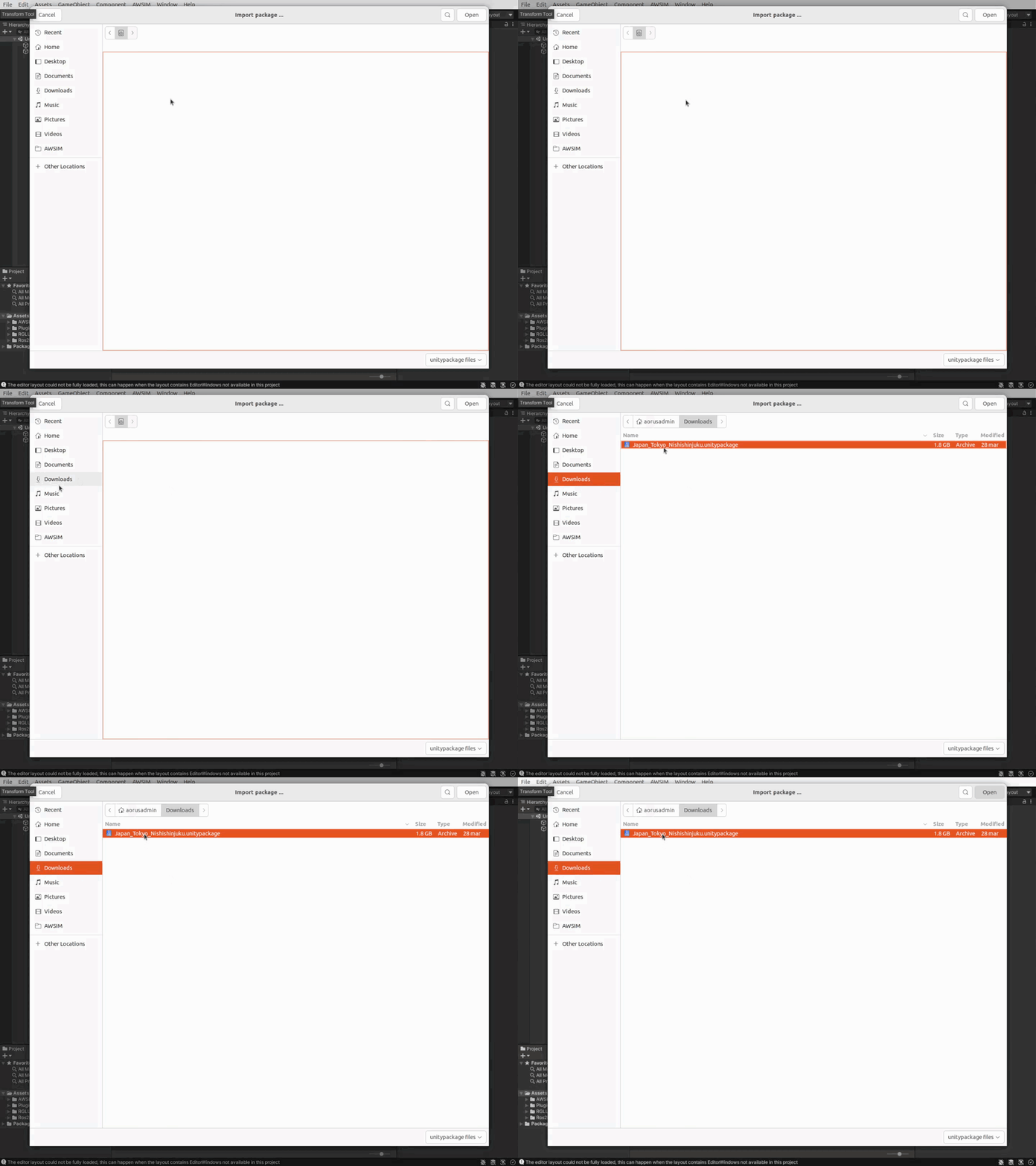
-
In import window that appeared click the
Importbutton to confirm and wait for the process to finish.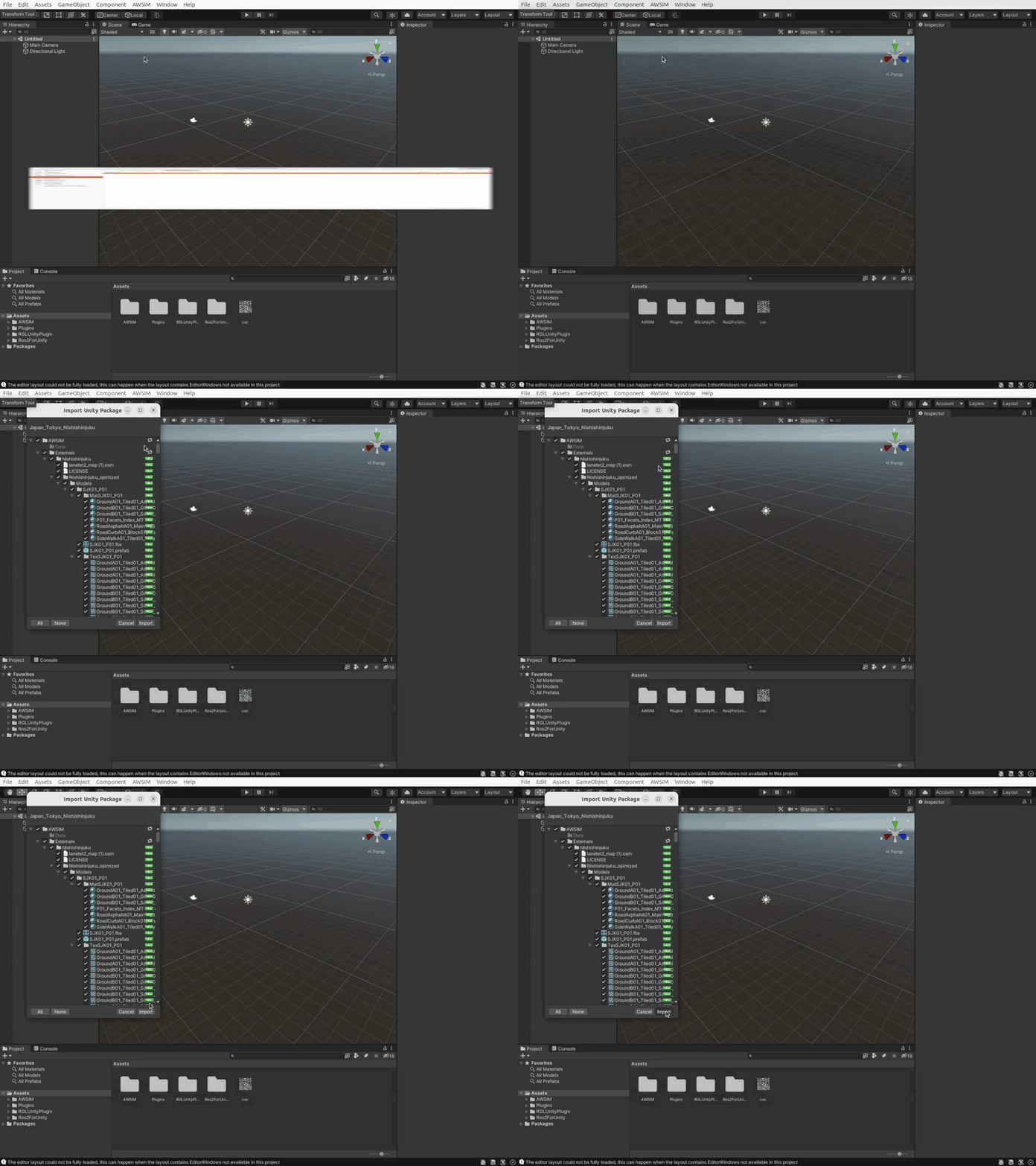
-
Nishishinjukupackage has been successfully imported underAssets/AWSIM/Externals/directory.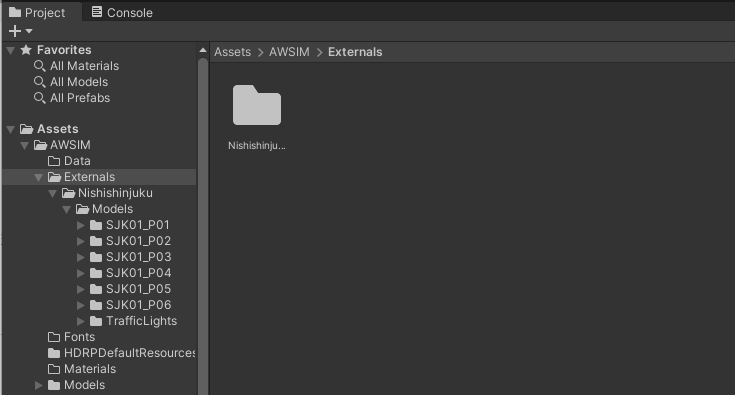
Success
The project is now ready to use. Now you can proceed to the next step Run Scene.