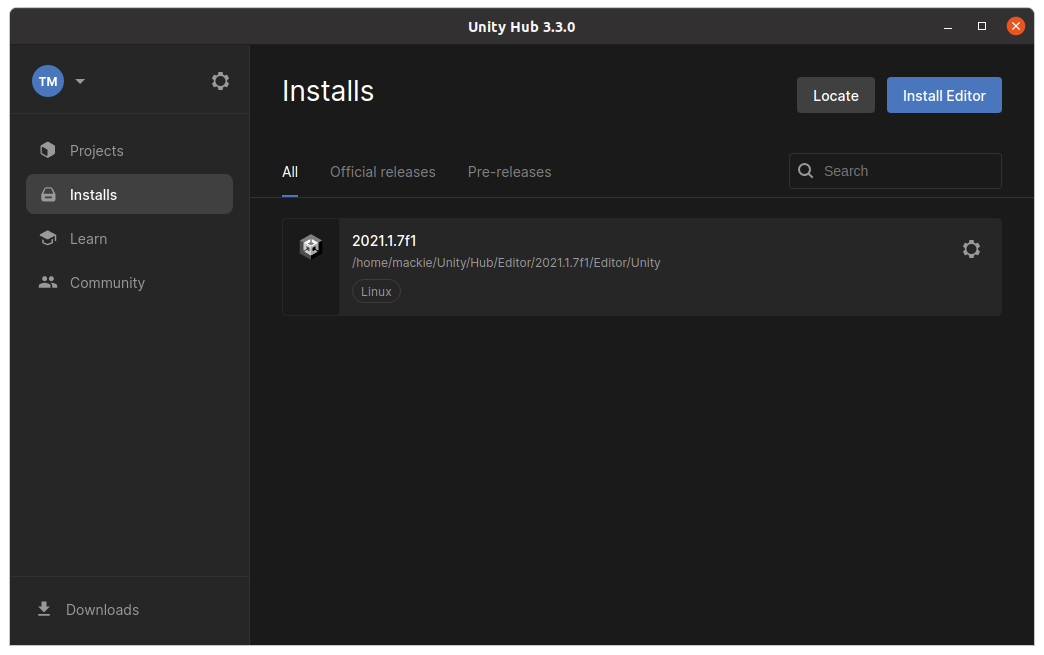
1. Unity Hub installation
To install Unity on Linux you need to install Unity Hub, run the following commands:
- Add the public signing key
wget -qO - https://hub.unity3d.com/linux/keys/public | gpg --dearmor | sudo tee /usr/share/keyrings/Unity_Technologies_ApS.gpg > /dev/null - Add Unity Hub repository to your sources
sudo sh -c 'echo "deb [signedby=/usr/share/keyrings/Unity_Technologies_ApS.gpg] https://hub.unity3d.com/linux/repos/deb stable main" > /etc/apt/sources.list.d/unityhub.list' - Update package cache and install package
sudo apt update
sudo apt-get install unityhub
Warning
To be on the safe side always check the official documentation on how to install Unity Hub, this manual is just for reference.
Please follow these instructions if you have any problems.
Success
Here will be added gif of unityhub launch
2. Unity installation
Info
AWSIM's Unity version is currently Unity 2021.1.7f1
Follow the steps below to install Unity 2021.1.7f1 via UnityHub:
- Open UnityHub by executing the command
unityhubin the terminal or by using application menu. - Click
Install EditorinInstallstab and navigate todownload archiveas shown below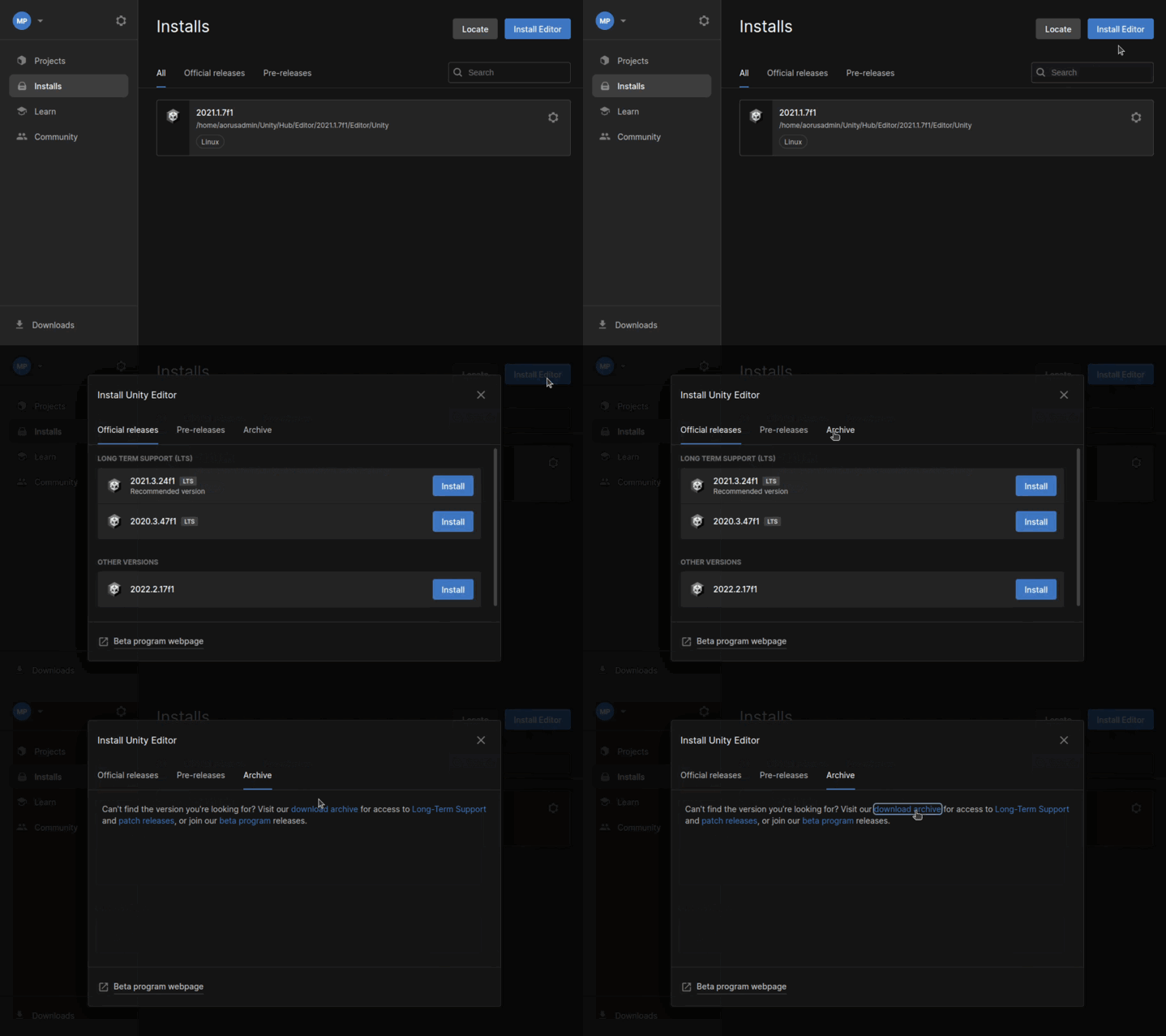
- Unity webpage will open, here navigate Unity version 2021.1.7 and download it as shown below
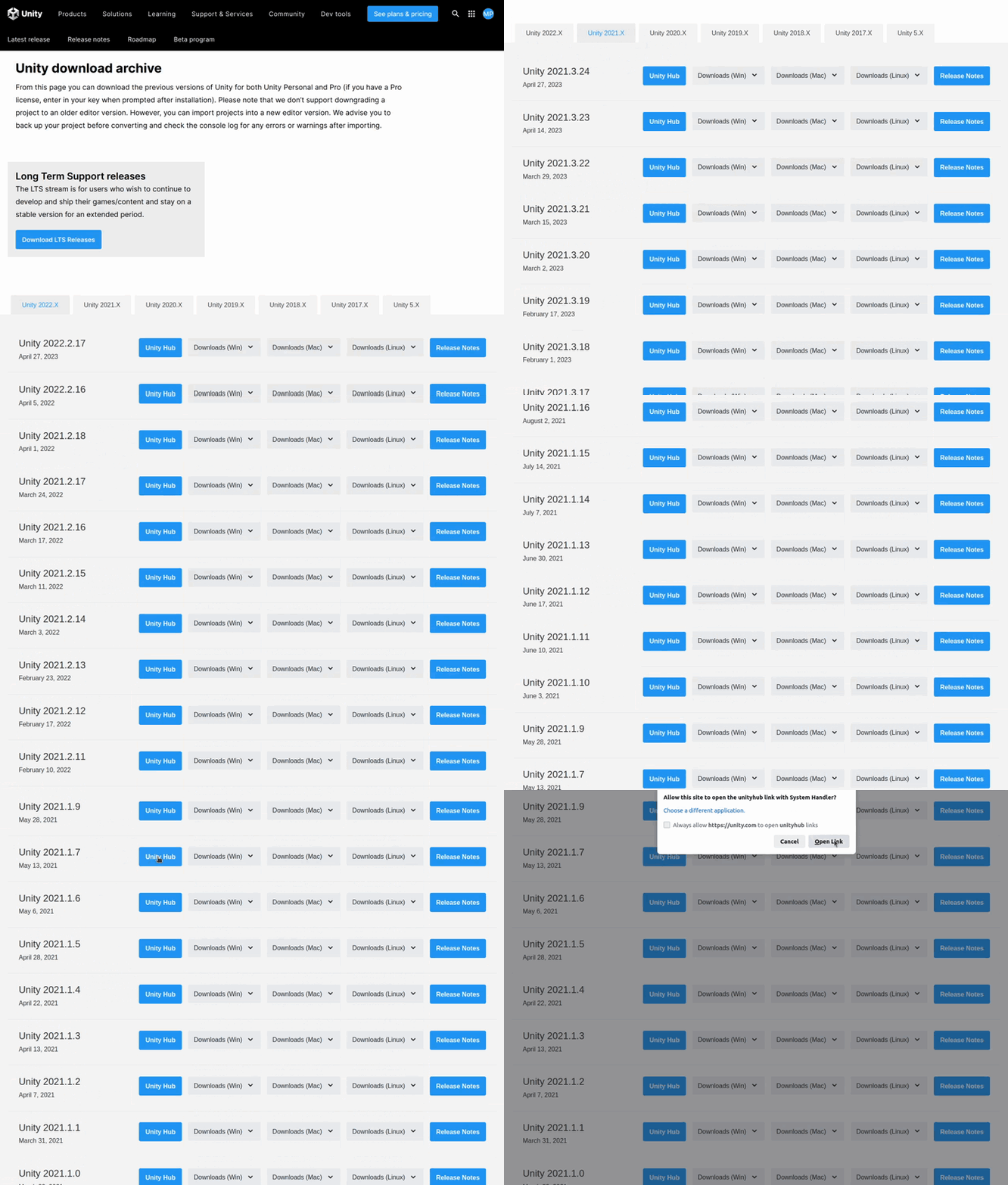
-
At this point, your Unity installation process should have started.
Note for Ubuntu 22
If the installation process has not started after clicking the blue button (image above), please copy the hyperlink (by rightclicking the button and selecting
Copy link address) and add it as a argument for UnityHub app. An example command:unityhub unityhub://2021.1.7f1/d91830b65d9b
Success
After successful installation the version will be available under the Installs tab in Unity Hub. Now you can proceed to the next step Setup Unity Project.