Prerequisites
Before following through with this section make sure to check prerequisites.
Warning
The AWSIM-compatible version of Autoware is developed for the ROS2 Humble distribution
Download and run
To run the demo, please follow the steps below.
-
Download the
AWSIM_v1.1.0.zip. -
Unzip the downloaded file.
-
Make the
AWSIM_demo.x86_64file executable.Rightclick the
AWSIM_demo.x86_64file and check theExecutecheckbox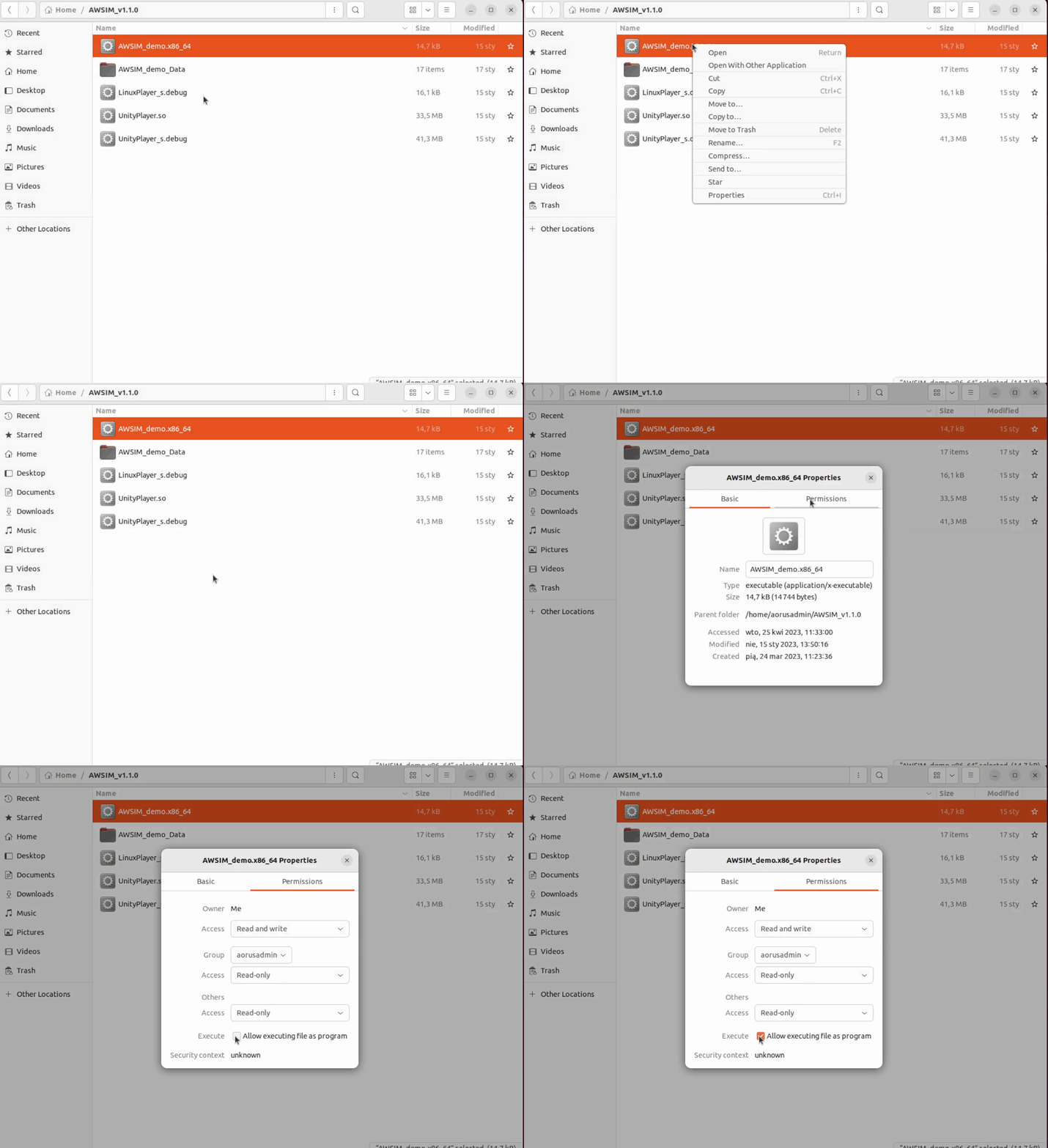
or execute the command below.
chmod +x <path to AWSIM folder>/AWSIM_demo.x86_64 -
Launch
AWSIM_demo.x86_64../<path to AWSIM folder>/AWSIM_demo.x86_64Info
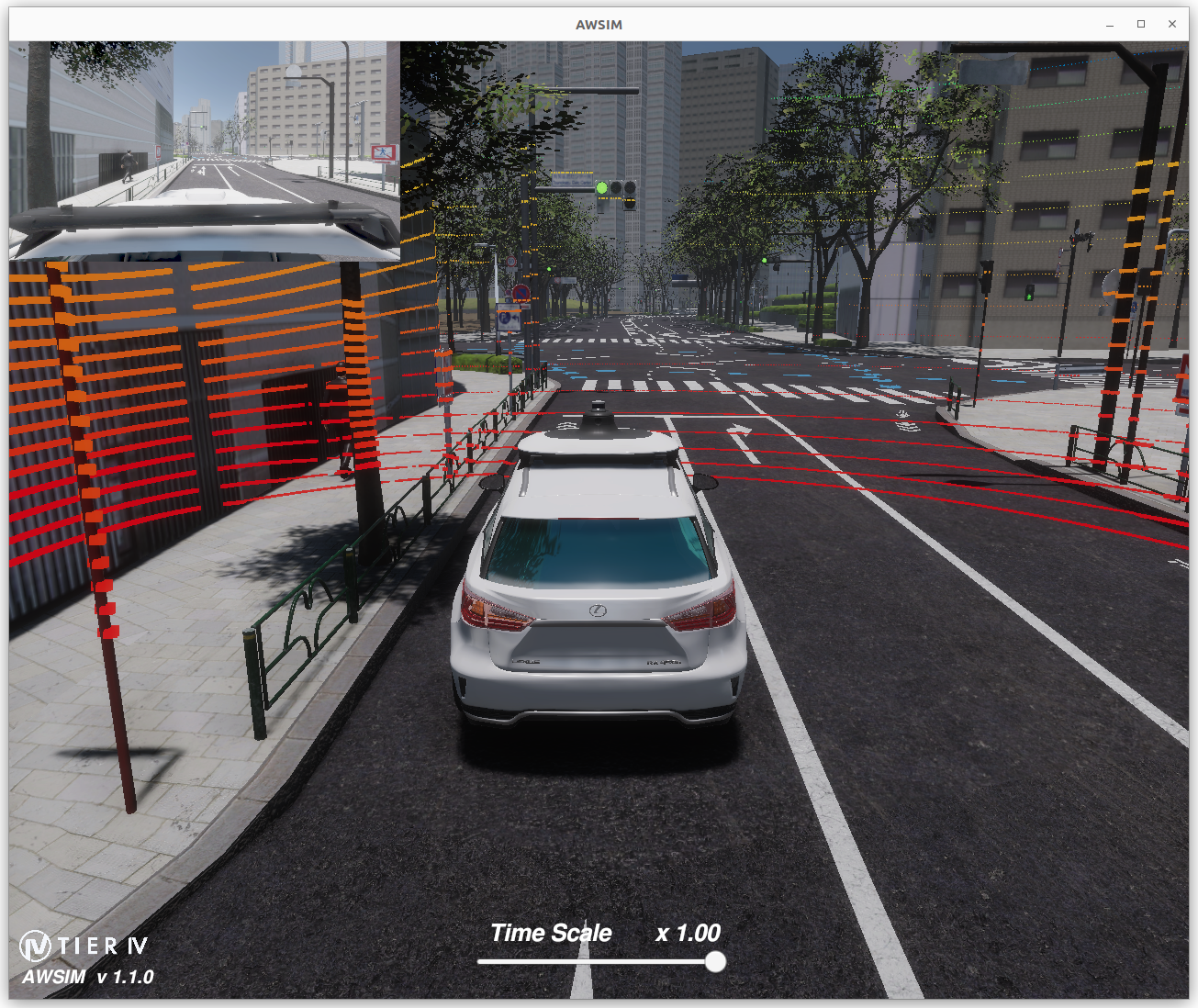
It may take some time for the application to start the so please wait until image similar to the one presented below is visible in your application window.
Demo configuration
The simulation provided in the AWSIM demo is configured as follows:
| Demo Settings | |
|---|---|
| Vehicle | Lexus RX 450h |
| Environment | Japan Tokyo Nishishinjuku |
| Sensors | GNSS * 1, IMU * 1, LiDAR * 1, Traffic camera * 1 |
| Traffic | Randomized traffic |
| ROS2 Distribution | Humble |
Success
Started and working properly the demo should look like this:
Run with Autoware
-
Download
map files (pcd, osm)and unzip them to the desired location
(keep the path to the folder - it will be needed). -
Launch AWSIM demo like in section before
-
Open new terminal and source ROS2 and the Autoware workspace by executing:
source /opt/ros/humble/setup.bash source <autoware_workspace_path>/install/setup.bash -
In the same terminal launch the Autoware by executing the commands with your own path to the
map files:ros2 launch autoware_launch e2e_simulator.launch.xml vehicle_model:=sample_vehicle sensor_model:=awsim_sensor_kit map_path:=<mapfiles_dir_path>Warning
<mapfiles_dir_path>must be changed arbitrarily. Specify the path to the outermost map folder.When specifying the path the
~operator cannot be used - please specify absolute full path, or use the$HOMEenvironmental variable.
Success
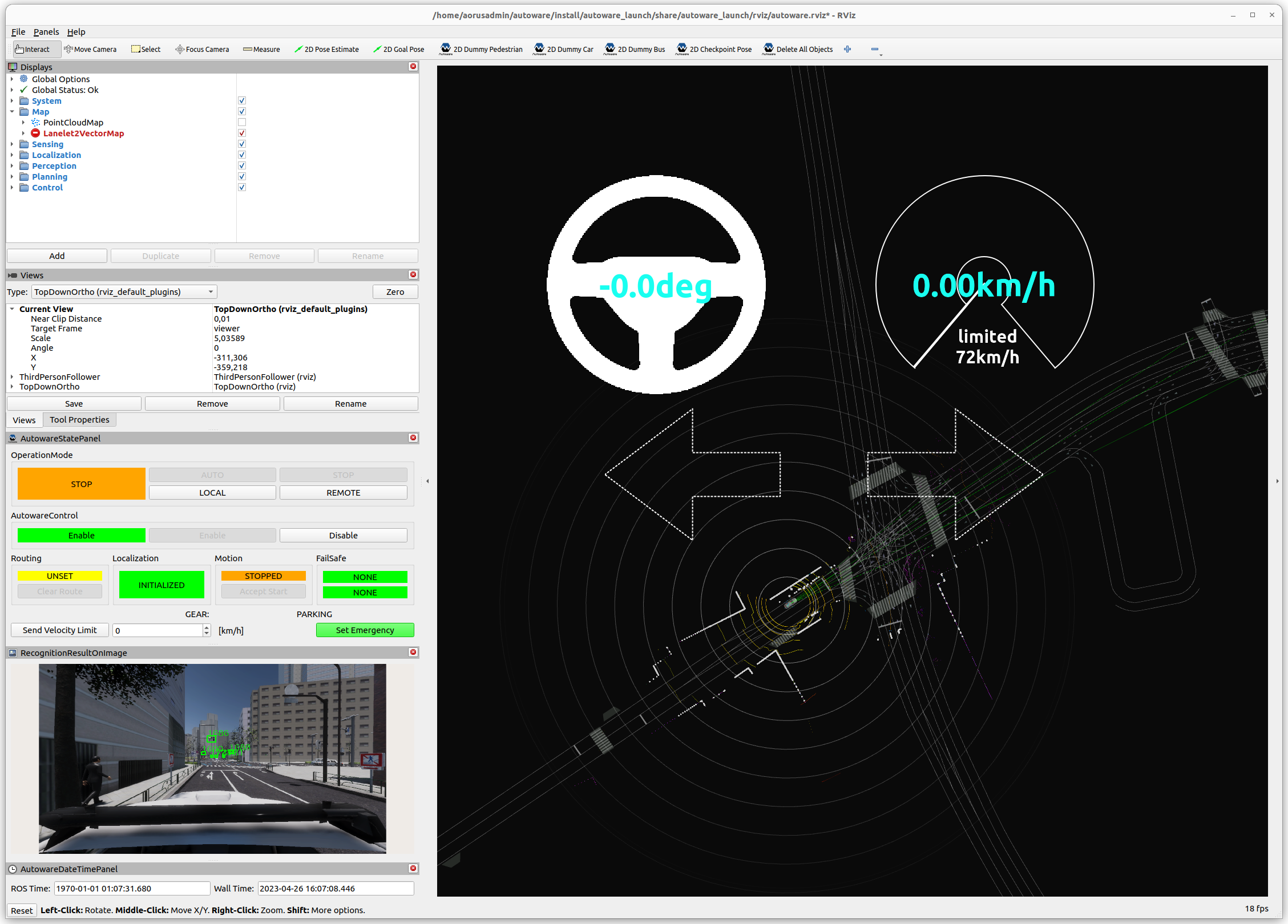
The Autoware that has been started and communicating properly with AWSIM should look like this: